Openings
Create a new opening
Open the new opening form
Go to the New Opening page and enter the internal opening name. CareerATS uses the name to suggest the public URL slug.
- Use the role title recruiters and managers will recognize.
- Keep the name specific enough to distinguish similar openings.
Set the public URL slug
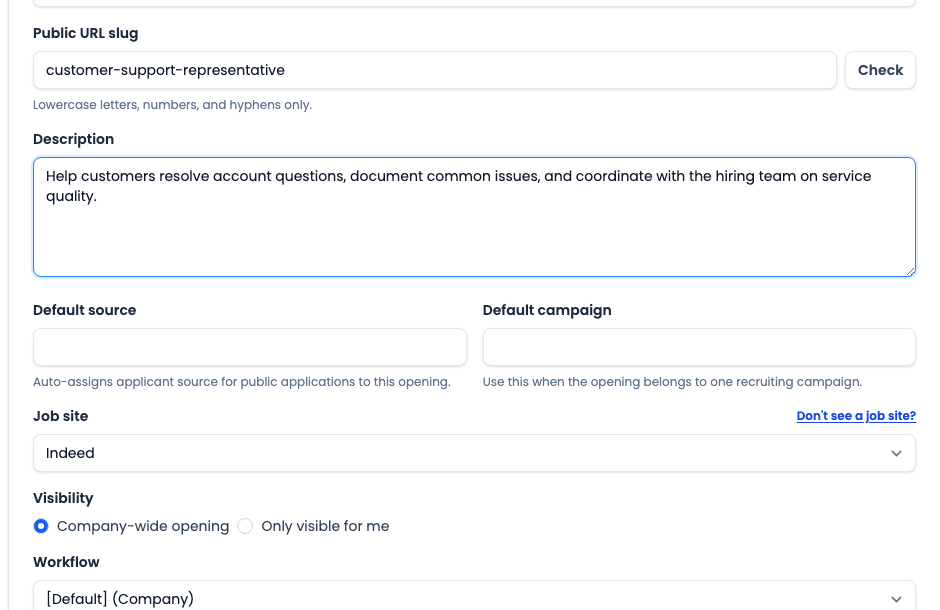
Review the Public URL slug before saving. The slug is used in the public opening link and must contain only lowercase letters, numbers, and hyphens.
- Click Check to confirm the slug is available.
- Use a stable role-based slug instead of a temporary internal nickname.
- Fix duplicate or awkward slugs before saving the opening.
Fill in posting details and tracking defaults
Add the short Description and the formatted Posting content applicants should read. Set Default source or Default campaign only when applicants for this opening should inherit those reporting values.
- Use Description for the concise role summary.
- Use Posting for the applicant-facing job content.
- Leave source and campaign blank when they would add noisy reporting data.
Choose job site, visibility, and workflow
Select the Job site, choose whether the opening is company-wide or only visible to you, and assign the workflow applicants should follow.
- Choose the job site that should own or track applicant source for this opening.
- Use the request link if the job site you need is missing.
- Use Company-wide opening for shared team roles.
- Choose a workflow that matches the hiring process for this role.
Save, review, and start the opening
Click Save to create the opening. CareerATS redirects to the opening detail page so you can confirm the setup before sharing or starting the opening.
- Confirm the name, slug, job site, visibility, workflow, and posting content.
- Start the opening only after the details are ready for applicants.
- Return to the openings list to confirm the role appears in the right place.