Company
Create company schedule
Create the base schedule
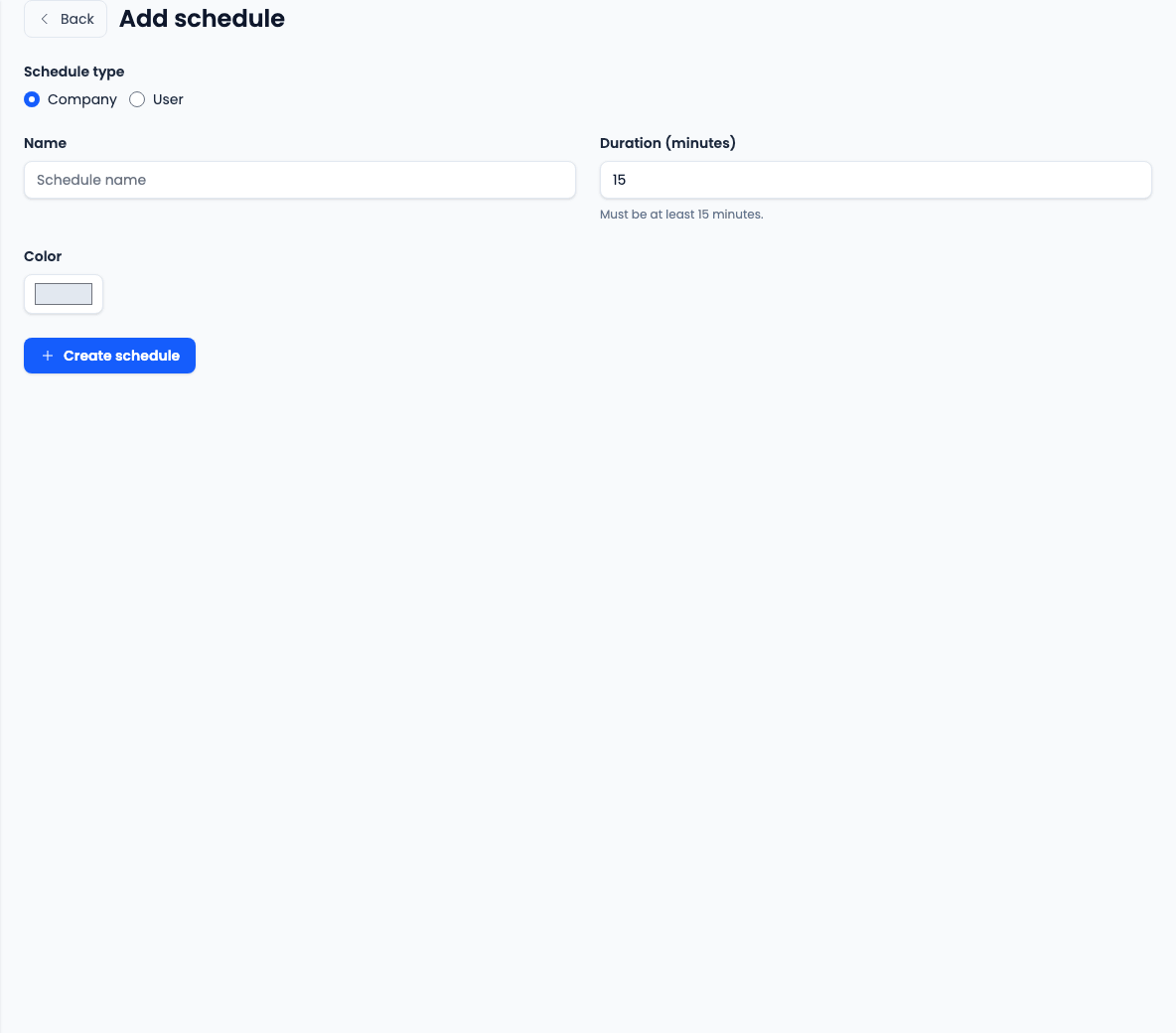
The Add schedule page creates the basic schedule record. Advanced settings are available after the schedule is saved.
- Choose Company when the schedule should be shared by the team.
- Choose User when the schedule should belong to one user.
- Enter a clear schedule name recruiters will recognize.
- Set the interview duration. It must be at least 15 minutes.
- Pick a calendar color that makes this interview type easy to identify.
Save and open the schedule
Click Create schedule, then open the saved schedule from the schedules list to finish the setup.
- Confirm the name, duration, and color before using the schedule in workflows or interviews.
- Create separate schedules when different interview types need different durations, availability windows, reminders, or group meeting rules.
- Use the saved schedule page for self-scheduling, availability blocks, group meetings, and reminder rules.
Enable self-scheduling when applicants should book
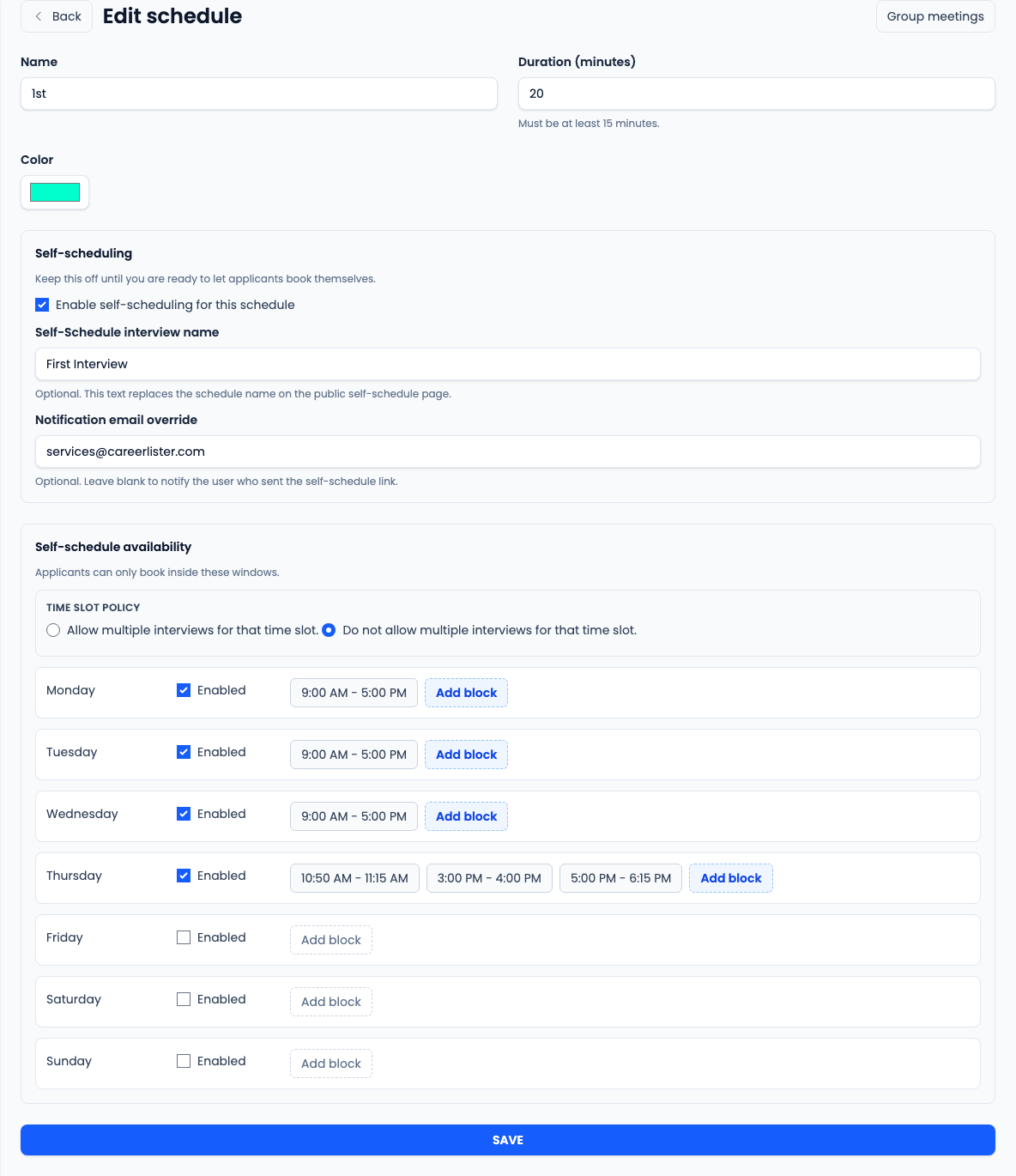
Self-scheduling is optional. Leave it off for schedules that recruiters book manually.
- Turn on Enable self-scheduling for this schedule only when applicants should see booking times.
- Use Self-Schedule interview name to show a public-facing interview label.
- Use Notification email override only when confirmations should always go to a fixed email address.
- Choose whether the same time slot can accept multiple interviews.
Add applicant availability blocks
Availability blocks control which times applicants can choose on the self-schedule page.
- Enable each weekday applicants may book.
- Edit the start and end time for each available block.
- Add multiple blocks to split a day into separate booking windows.
- Delete blocks that should not be offered and avoid overlapping blocks on the same day.
Add group meeting sessions if needed
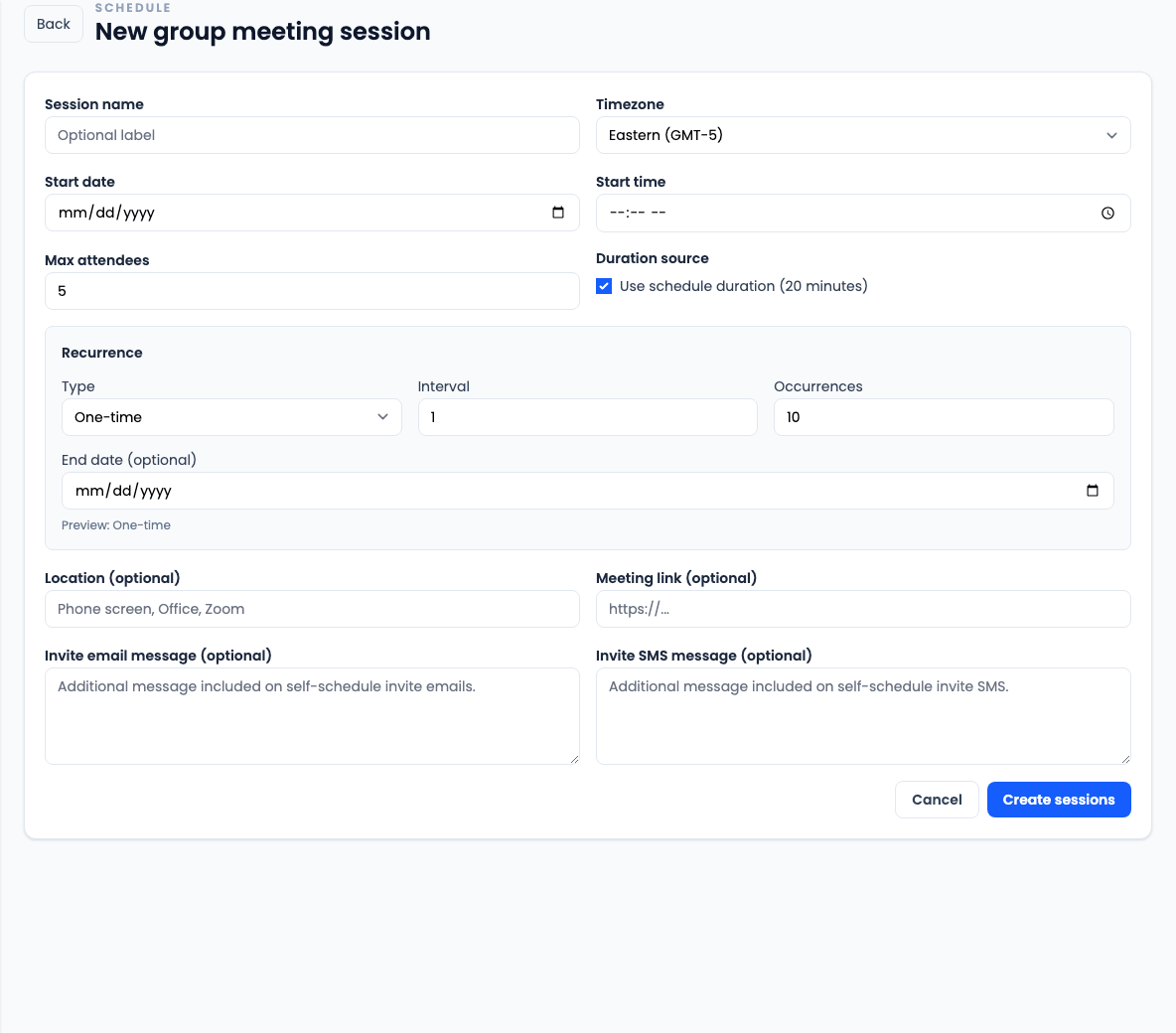
Use Group meetings when multiple applicants should be able to book the same session.
- Open Group meetings from the saved schedule.
- Create a New session with date, time, timezone, and max attendees.
- Use the schedule duration or enter a custom duration of at least 15 minutes.
- Use one-time, daily, or weekly recurrence when you need multiple sessions.
- Add a location, meeting link, and optional invite email or SMS message for session-specific instructions.
Add reminder rules if needed
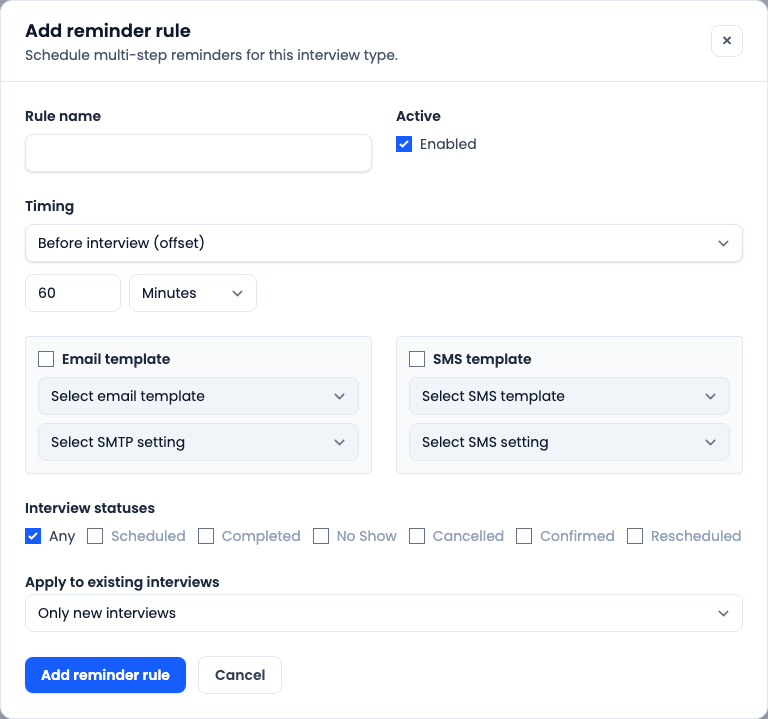
Reminder rules send automated messages for interviews booked on this schedule.
- Create a reminder rule for email, SMS, or both.
- Use Before interview for minute or hour offsets before the appointment.
- Use Day of interview for reminders sent at a specific time.
- Choose the templates and sender settings for each enabled channel.
- Apply the rule to Any status or selected interview statuses.
- Use Rebuild upcoming interviews only when the rule should affect existing upcoming interviews.
Verify the schedule before rollout
Test the schedule before recruiters or applicants rely on it.
- Open or send a self-schedule link and confirm only the intended times appear.
- Book a test group meeting if the schedule uses group sessions.
- Confirm reminders appear in the reminders queue when reminder rules are active.
- Assign the schedule to workflows or use it for interviews only after the behavior is confirmed.