Company
Manage company schedules
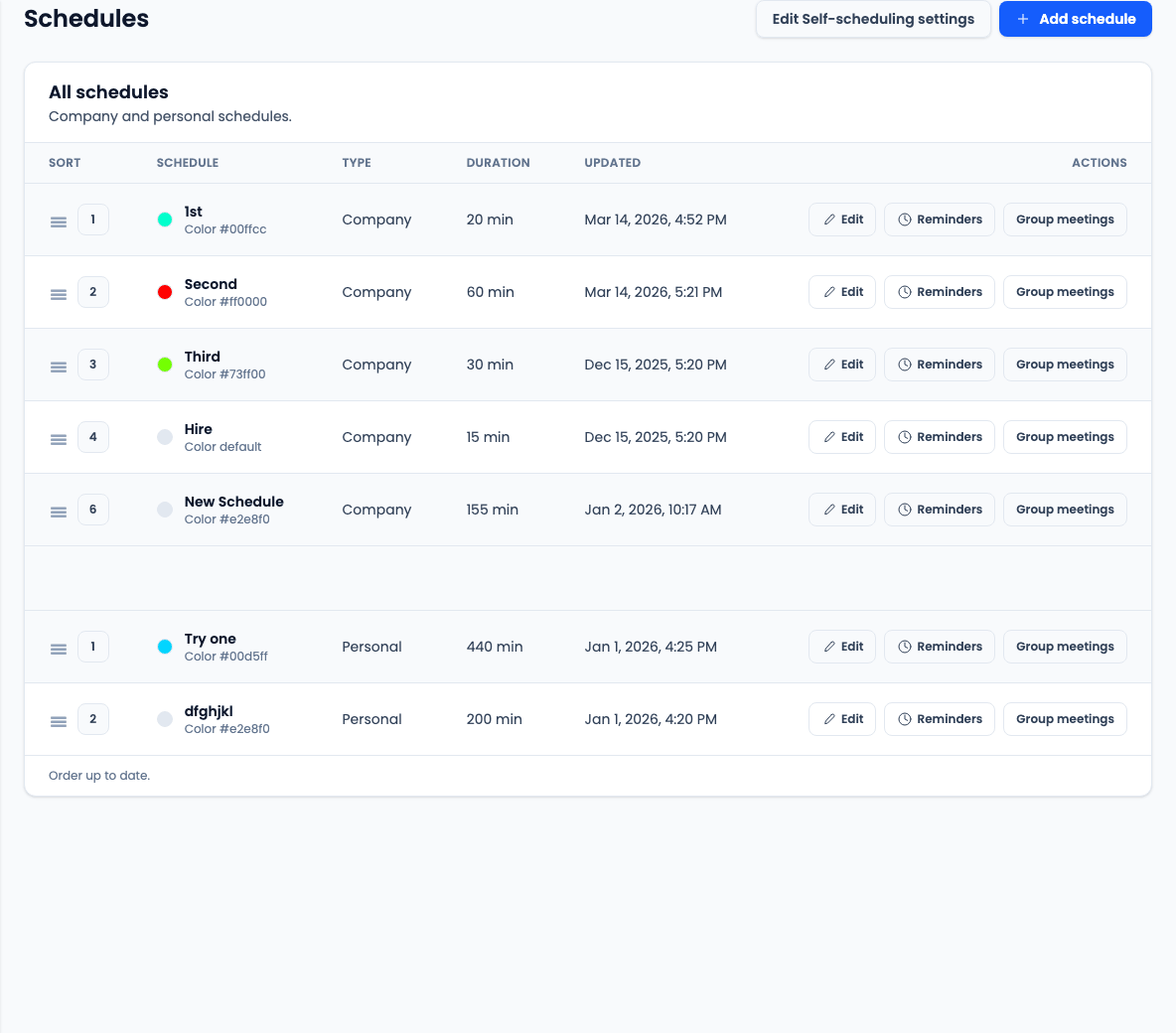
Review the schedule list
- Go to Admin > Company > Schedules.
- Review company and user schedules before adding another one.
- Use the list order to keep the most-used schedules easy to find.
- Open the schedule record when you need to edit duration, color, self-scheduling, group meetings, or reminders.
Review schedule basics
- Confirm the schedule name recruiters will select when booking interviews.
- Confirm the interview duration. It must be at least 15 minutes and is used by normal bookings and group meetings that use the schedule duration.
- Confirm the calendar color so interviews are easy to scan in calendar views.
- Create a separate schedule when the team needs different duration, self-schedule windows, reminder rules, or group session behavior.
Configure self-scheduling
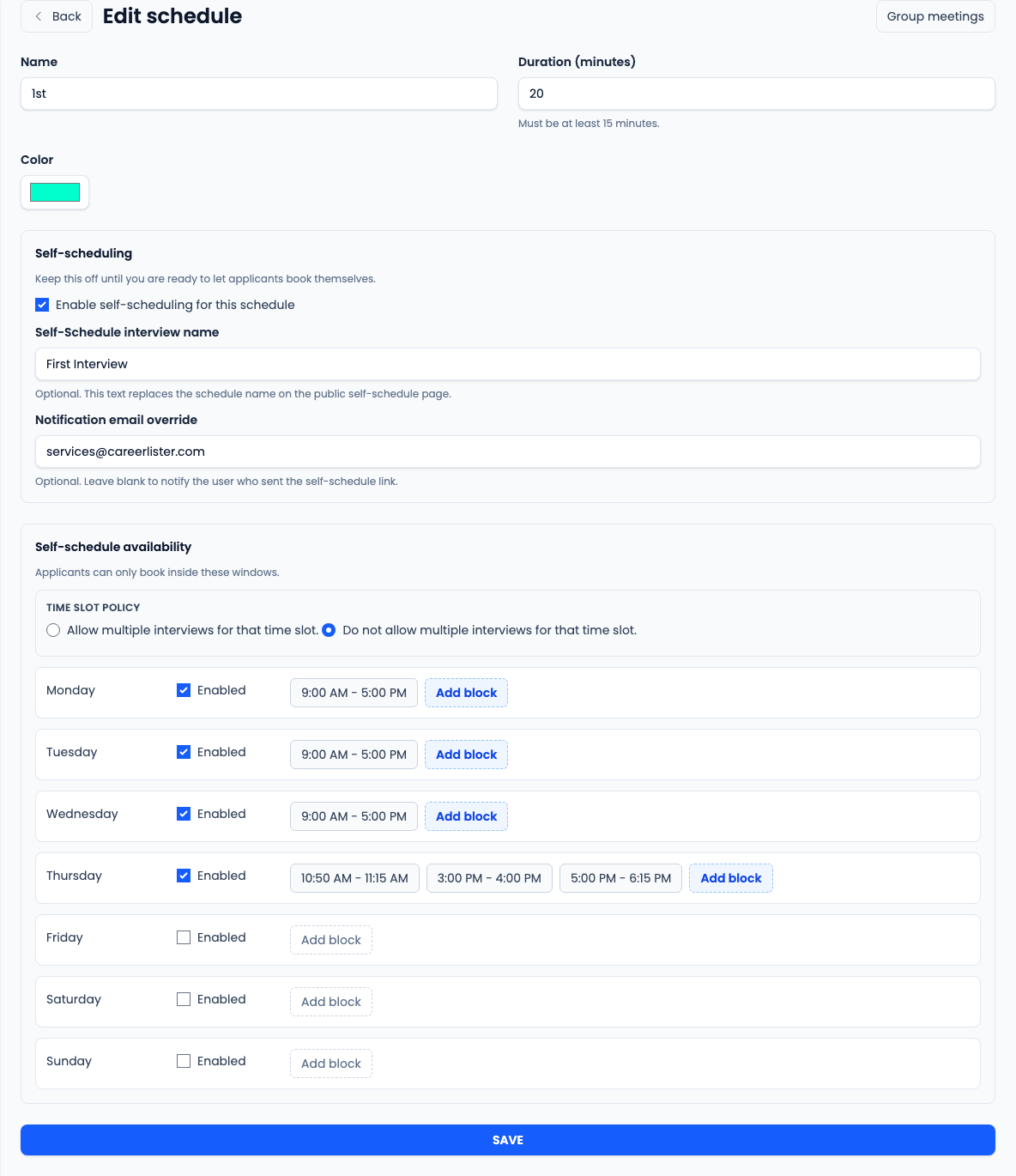
- Keep self-scheduling off until applicants should be able to book this schedule themselves.
- Use Self-Schedule interview name when the applicant-facing page should show a clearer public name than the internal schedule name.
- Use Notification email override only when confirmations should go to a fixed email address instead of the user who sent the self-schedule link.
- Choose whether multiple interviews are allowed for the same time slot.
Set applicant availability blocks
- Availability blocks appear only when self-scheduling is enabled.
- Enable each weekday applicants may book.
- Click an existing block to edit its start and end time.
- Click Add block when a day needs separate windows, such as morning and afternoon availability.
- Delete blocks that should no longer be offered, and keep blocks on the same day from overlapping.
Manage group meetings
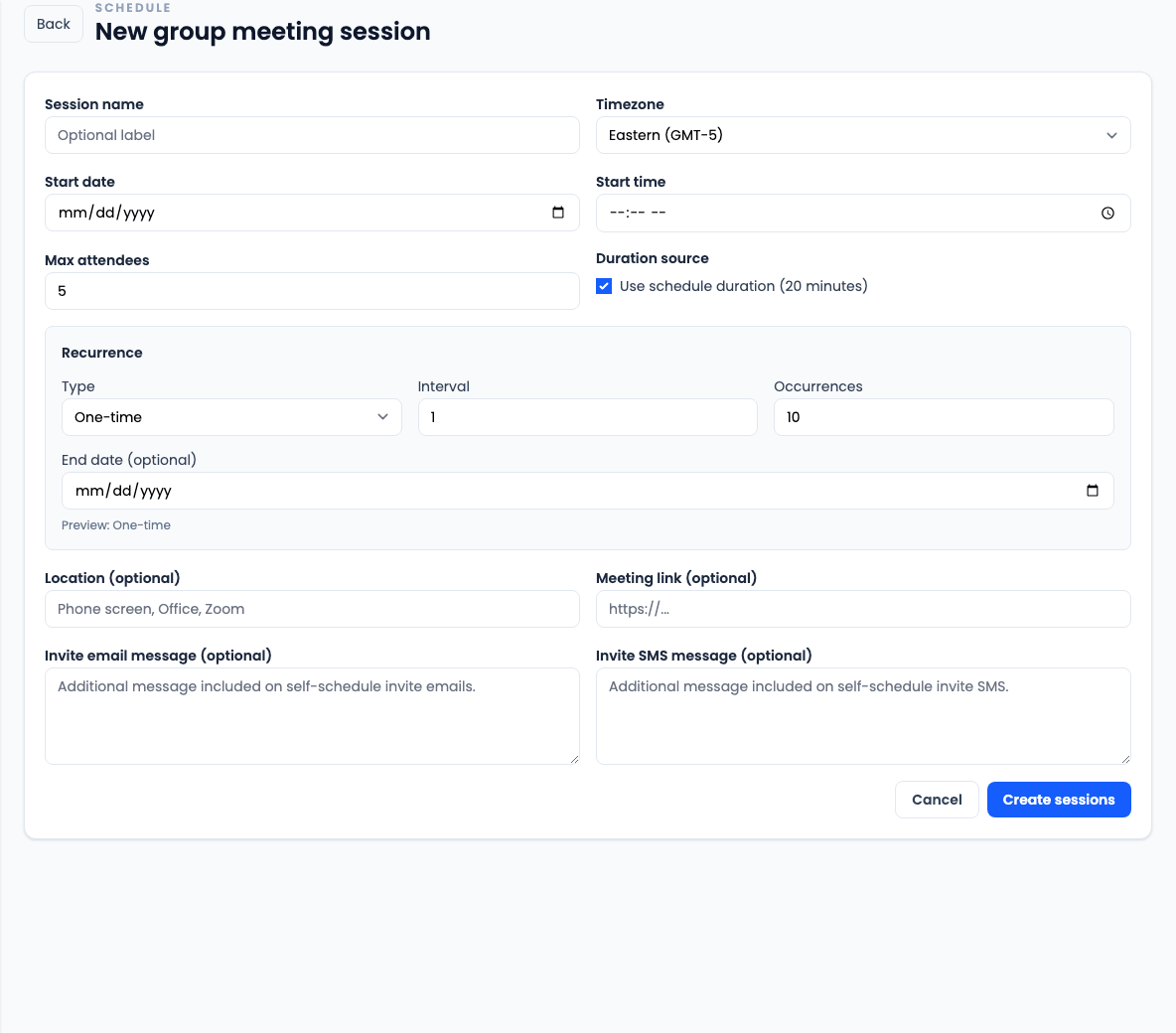
- Open a schedule, then click Group meetings to review upcoming sessions and expired sessions from the last 30 days.
- Use New session to create a group self-schedule slot with a date, time, timezone, and maximum attendee count.
- Use the schedule duration or set a custom duration of at least 15 minutes.
- Create one-time, daily, or weekly recurring sessions, with an optional end date and weekly weekday selection.
- Add location text, a meeting link, and optional email or SMS invite text when applicants need session-specific instructions.
- Cancel a group session when it should no longer accept bookings.
Manage interview reminders
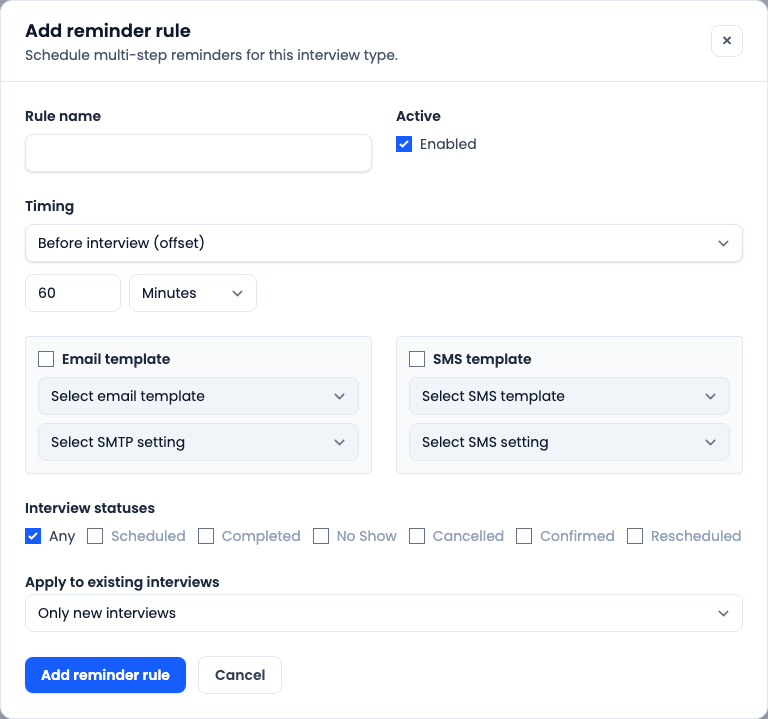
- Use a schedule reminder rule when interviews for this schedule should send automated email, SMS, or both.
- Choose Before interview for reminders sent a number of minutes or hours before the interview.
- Choose Day of interview to send at a specific time using the selected timezone source.
- Select the email template and SMTP setting for email reminders.
- Select the SMS template and SMS setting for text reminders.
- Apply the rule to Any interview status or only selected statuses.
- Choose Rebuild upcoming interviews when a new or changed rule should be applied to existing upcoming interviews.
Save and verify
- Click Save after changing schedule settings.
- Send or open a self-schedule link to confirm applicants only see valid booking windows.
- Book a test interview when you need to confirm duration, overlap behavior, group meeting capacity, or reminder rules.
- Check the company reminder queue if reminder delivery needs verification.