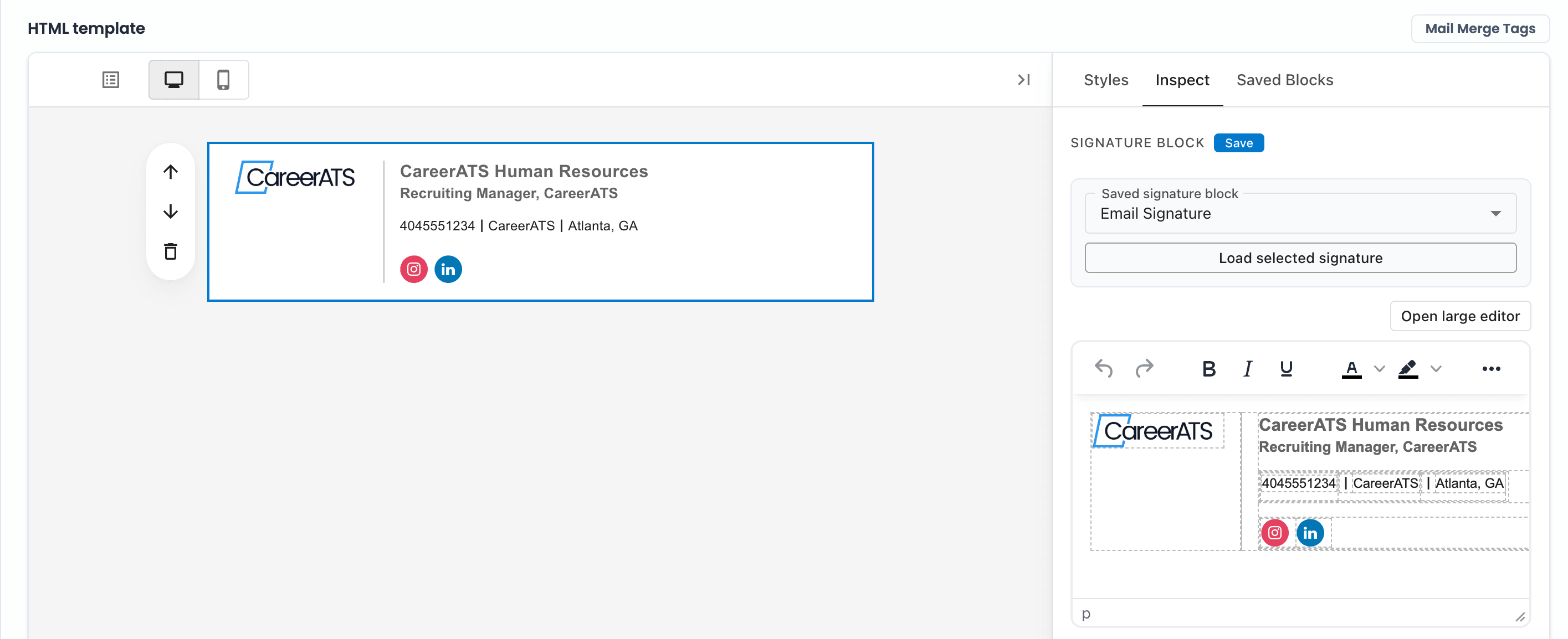
Manage email signature
Open Email Signatures
Email Signatures shows the saved signature blocks available to the email template builder. Signatures created here and signatures saved from a template are stored in the same library.
- Go to Admin > Email > Email Signatures.
- Use search, visibility, and sort controls to find an existing signature.
- Open a signature to edit it, or click New signature to create one directly.
Create or edit signature content
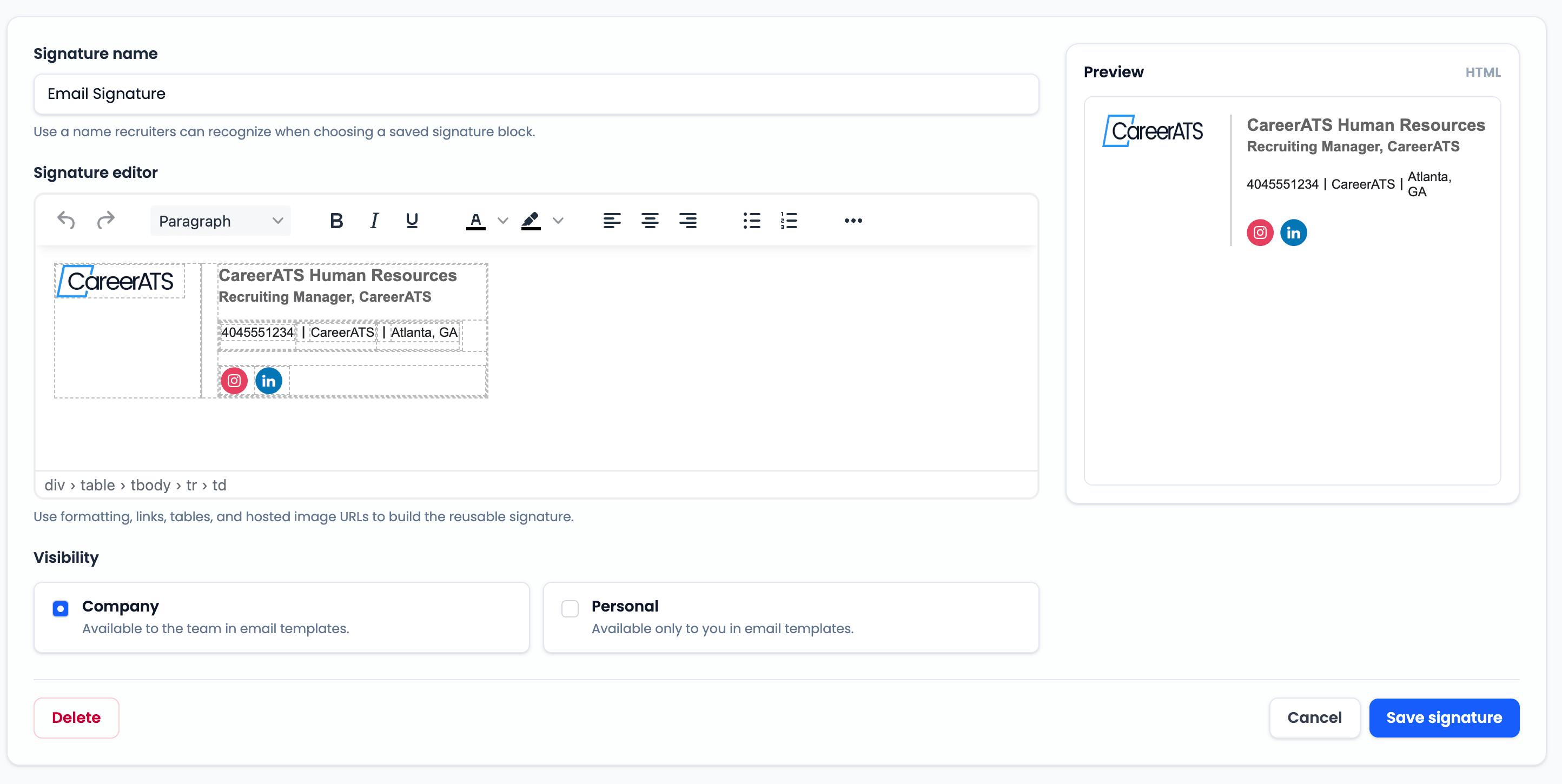
Use the signature form to name the reusable block, format the signature in the editor, choose visibility, and preview the rendered result before saving.
- Use a clear name recruiters will recognize in the template builder.
- Choose Company visibility for shared signatures or Personal visibility for your own signature.
- Use hosted email images first if the signature needs a logo or image asset.
Choose the saved signature in a template
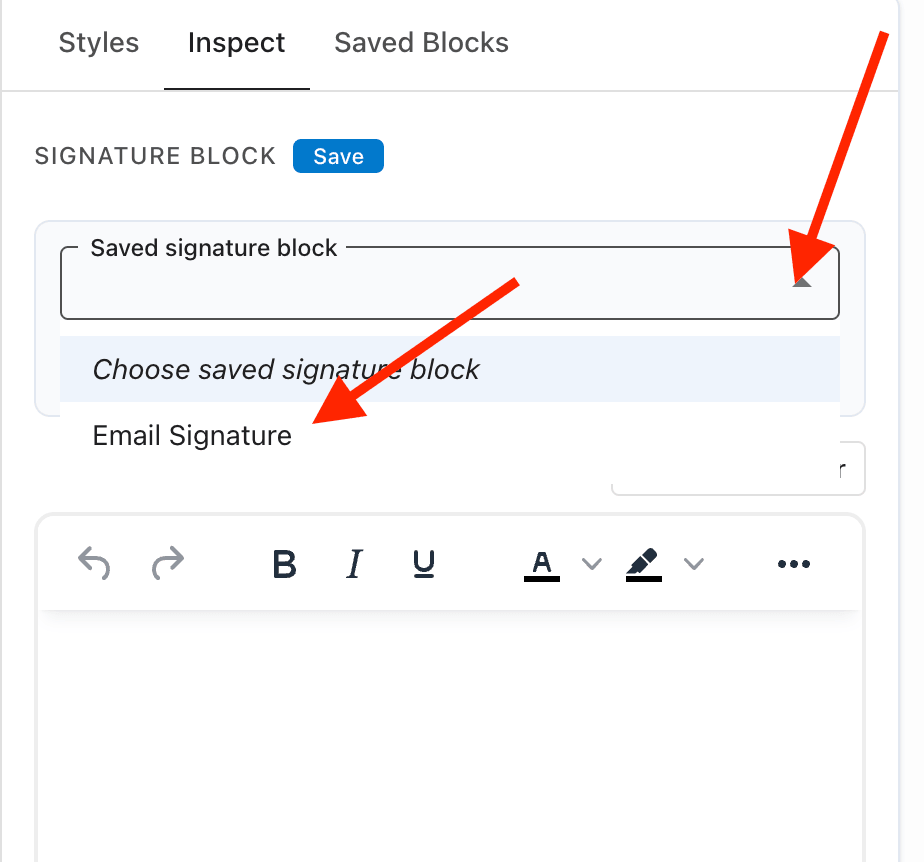
Open the email template that should use the signature, add or select a Signature block, then use the Inspect panel to choose the saved signature block.
- Select the Signature block in the template canvas.
- Open the Inspect tab in the right panel.
- Open Saved signature block and choose the signature name.
Load the selected signature
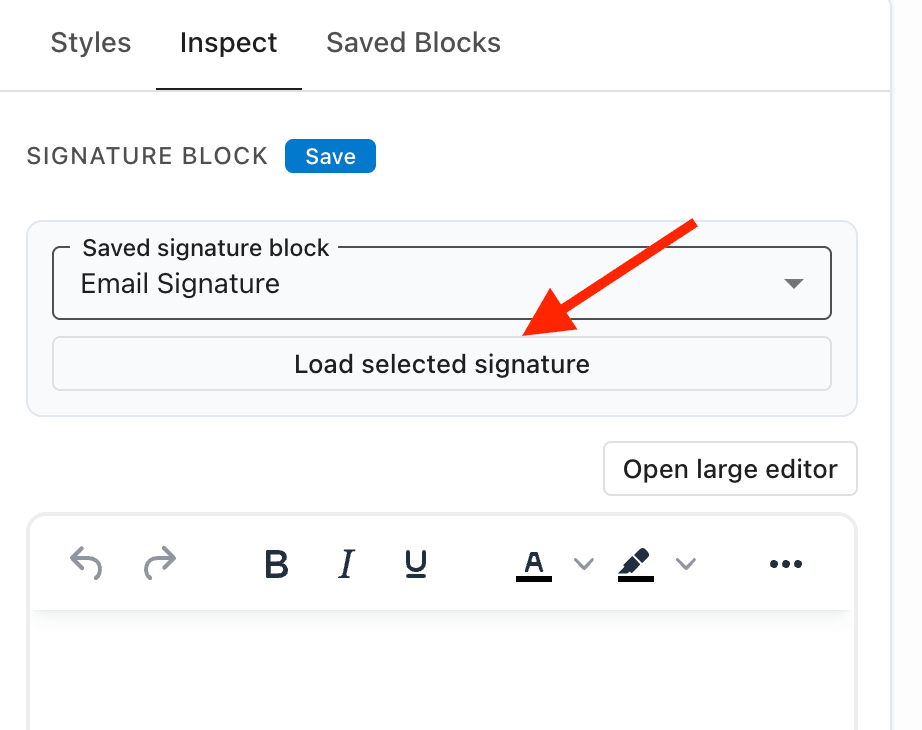
After choosing the saved signature block, click Load selected signature. This copies the saved signature content into the selected Signature block in the template.
- Make sure the correct signature name is selected before loading.
- Click Load selected signature.
- Use the editor below the dropdown only if the loaded signature needs a template-specific adjustment.
Verify and save the template
Review the signature on the template canvas after it loads, then save the email template so the selected signature stays in that template.
- Confirm the signature appears once and in the correct location.
- Check links, images, spacing, and any mail merge tags before using the template with applicants.
- Run a test merge or preview the related email workflow before sending live messages.