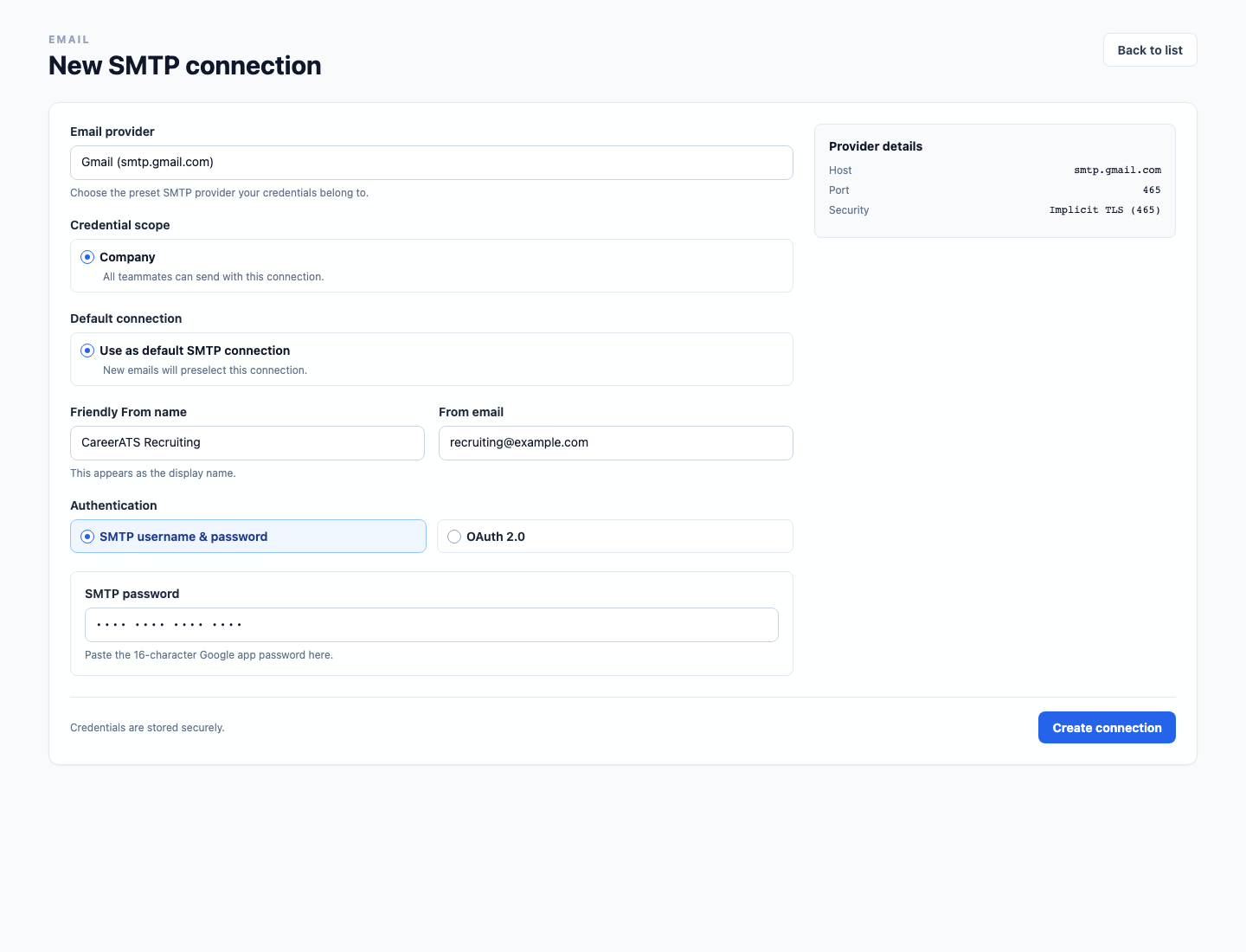
Set up Gmail SMTP with an app password
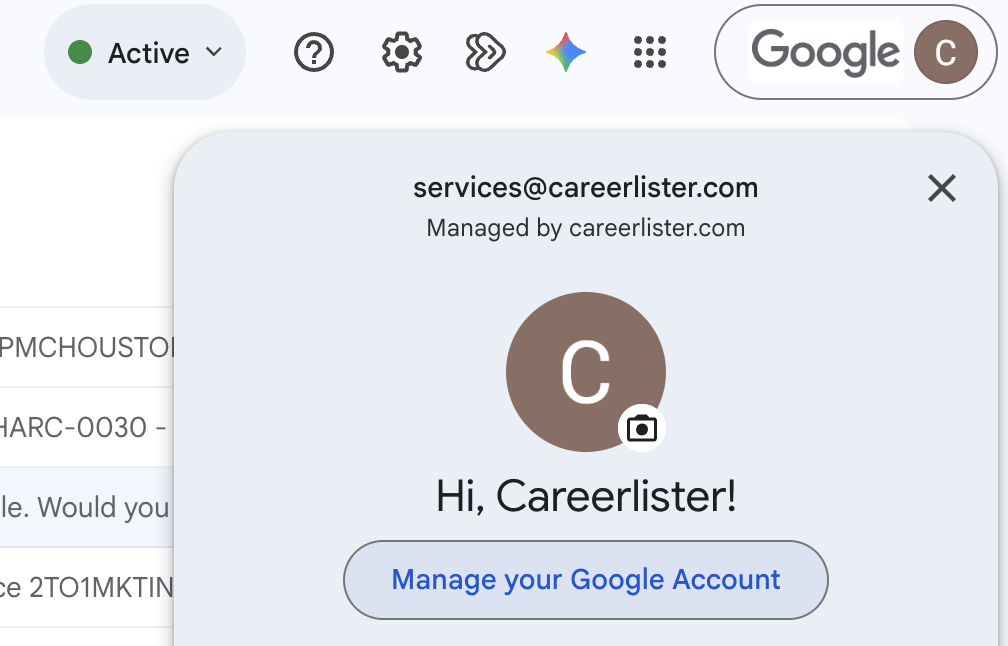
Open your Google Account
Sign in to the Gmail or Google Workspace account that CareerATS should use for sending. Open the account menu, then select Manage your Google Account.
- Use the same mailbox you will enter in the CareerATS From email field.
- Confirm you are working in the correct Google account before changing security settings.
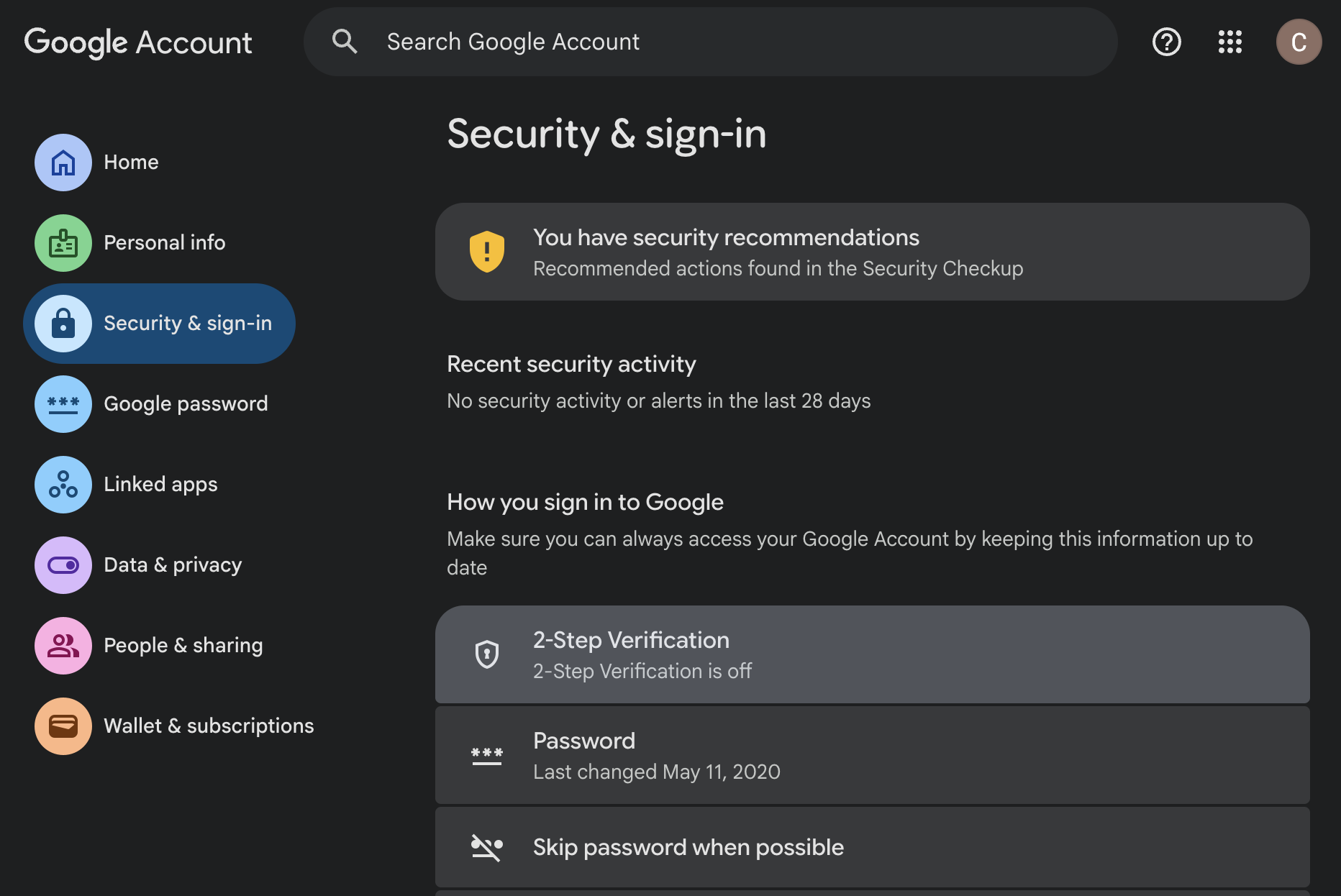
Open 2-Step Verification
In your Google Account, select Security. Under How you sign in to Google, select 2-Step Verification.
- Google requires 2-Step Verification before you can create an app password.
- Your Google Workspace administrator may control whether this option is available.
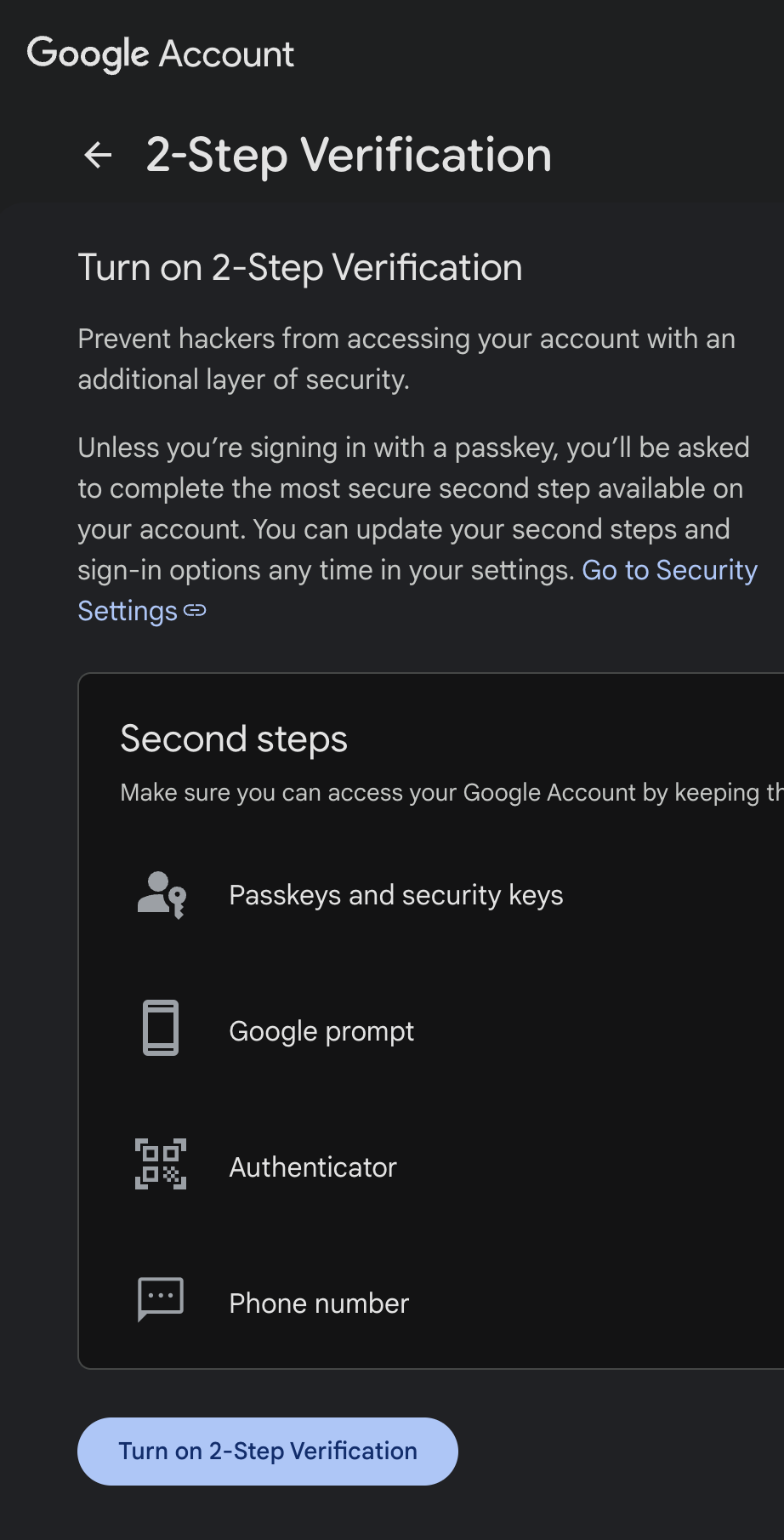
Turn on 2-Step Verification
Select Turn on 2-Step Verification and complete the prompts from Google. Return to your Google Account after setup is complete.
- Keep your normal Google password private; it is not the password you will save in CareerATS.
- If 2-Step Verification is already on, continue to the next step.
Find App passwords
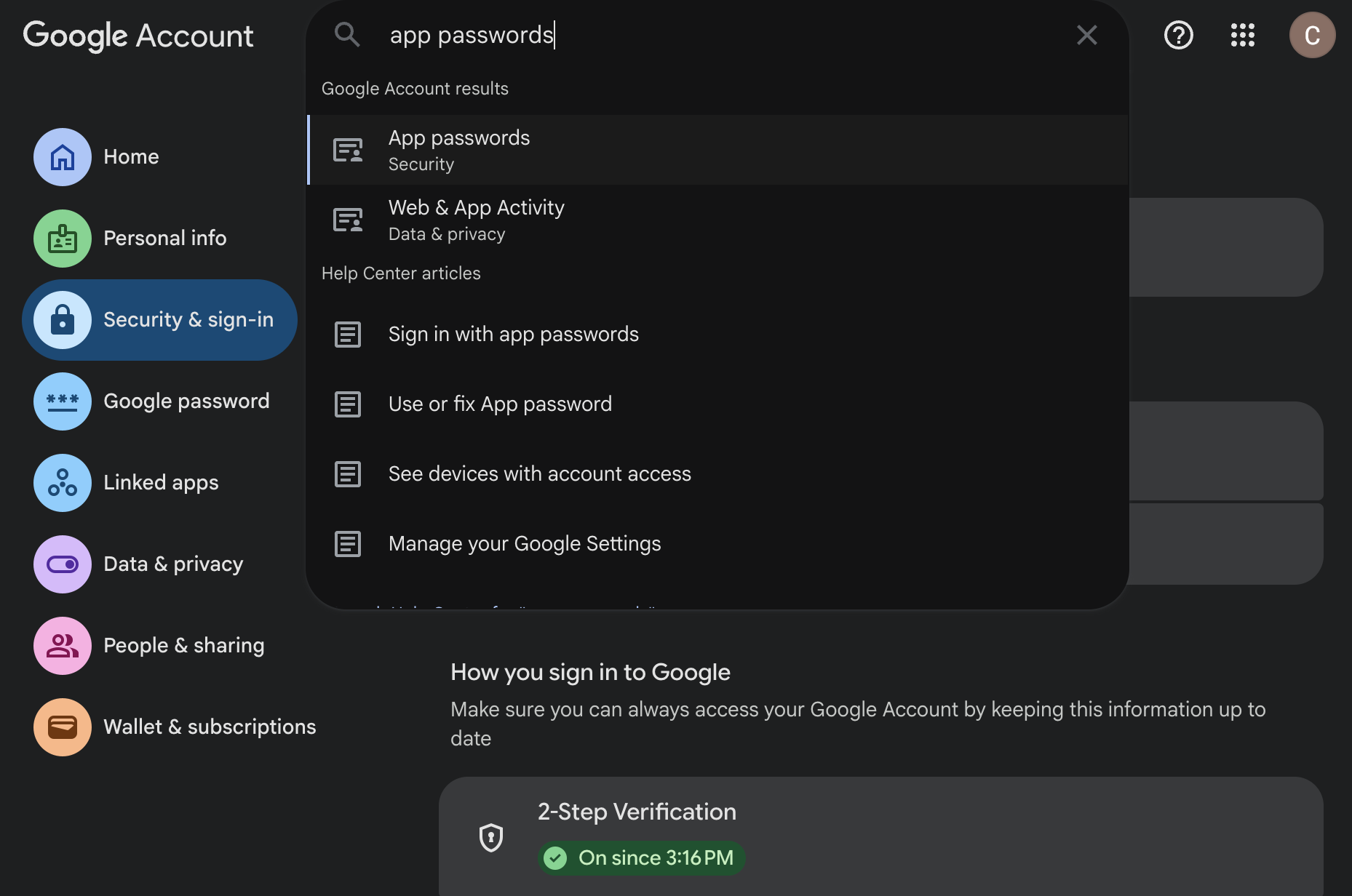
Use the search box at the top of your Google Account and search for App passwords. Select the App passwords result and sign in again if Google asks you to.
- App passwords may be unavailable for some work or school accounts.
- They are also unavailable when Advanced Protection or security-key-only 2-Step Verification is enabled.
Create an app password for CareerATS
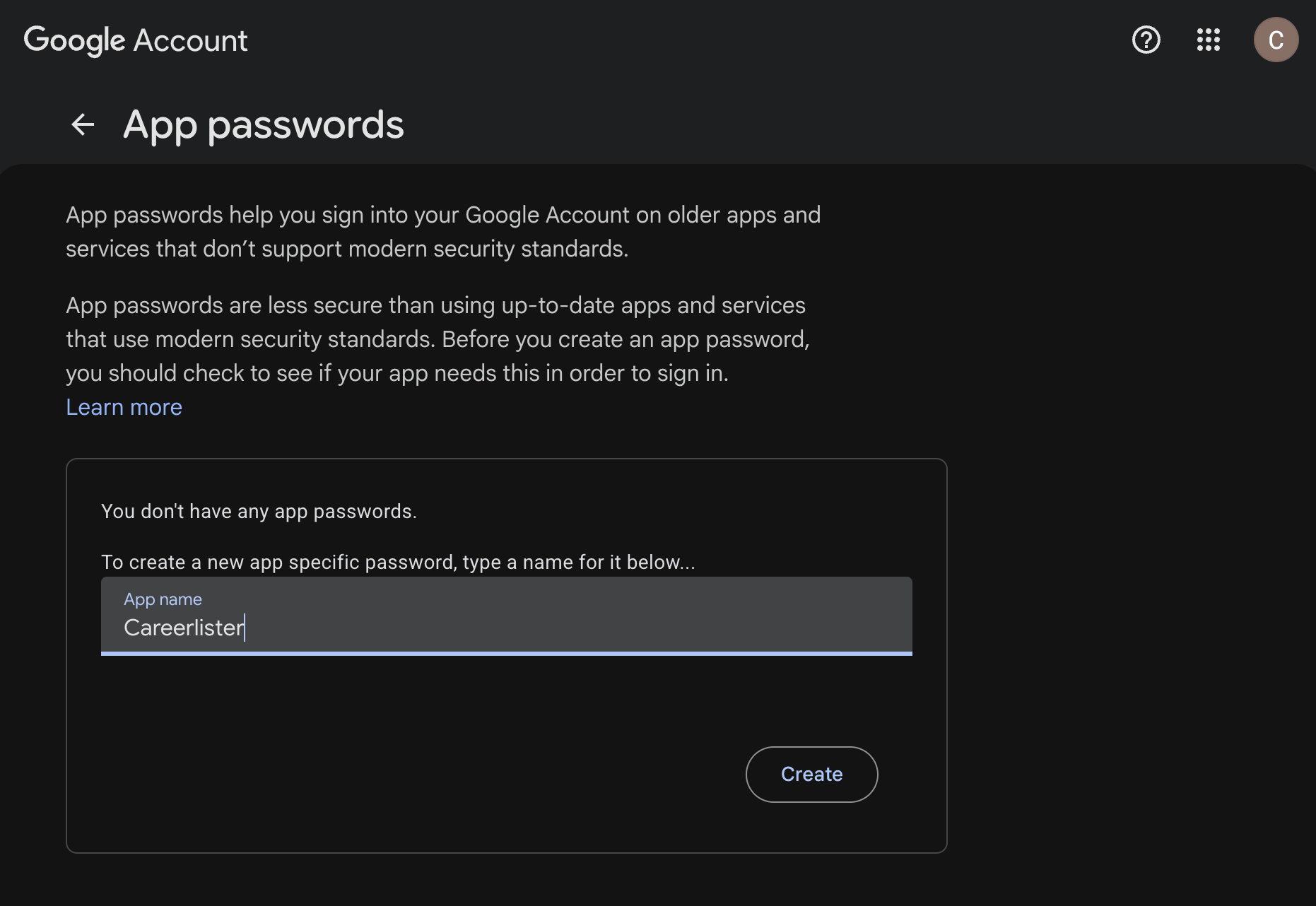
On the App passwords page, enter CareerATS as the app name, then select Create.
- Use a recognizable name so you can identify and revoke this credential later.
- Create a separate app password for each Google sender account you connect.
Copy the generated password
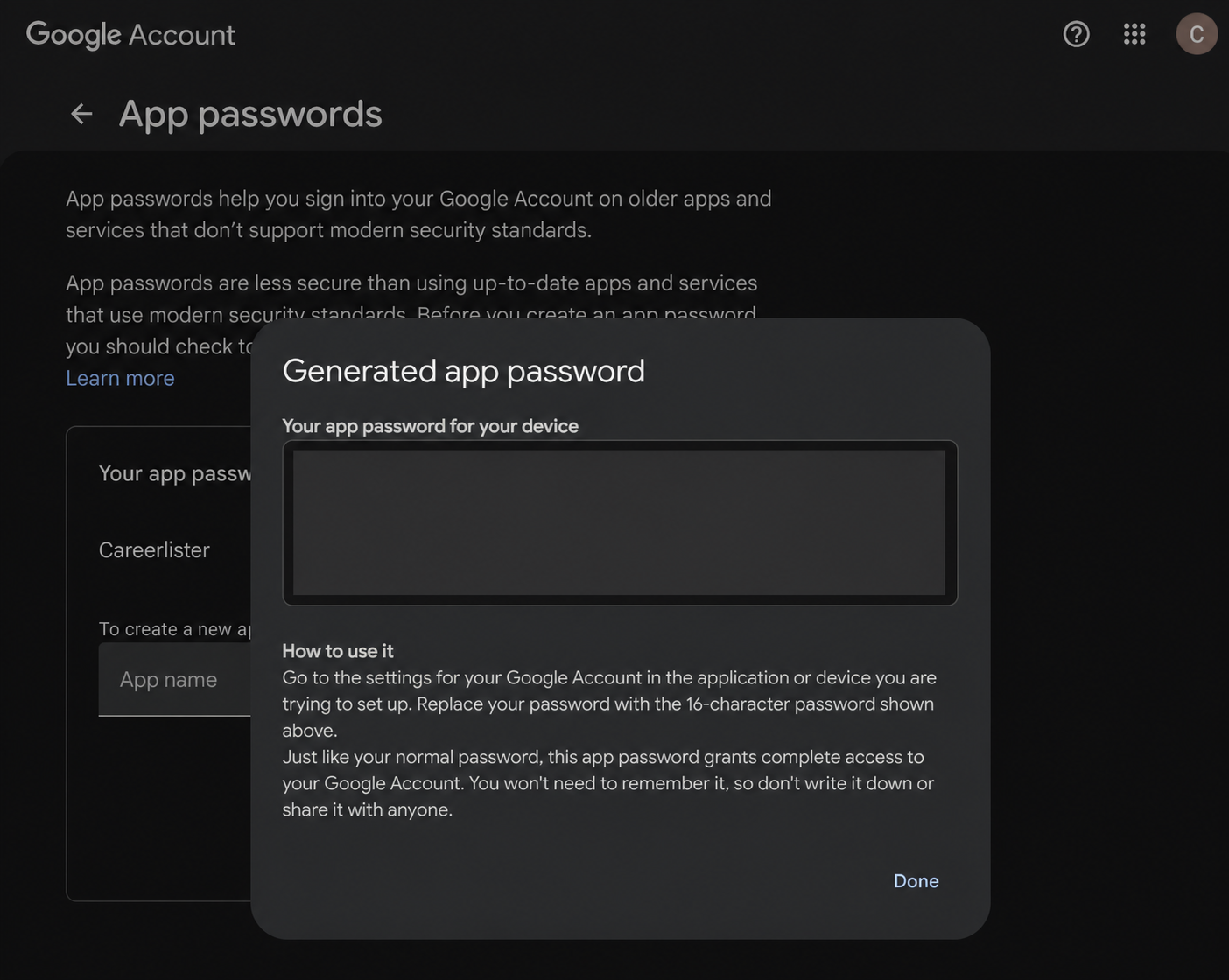
Copy the 16-character app password when Google displays it. Google only shows this password once, so keep the page open until you finish the CareerATS setup.
- Do not use your normal Google account password in CareerATS.
- If you close the dialog before copying the password, create a new app password.
Create the Gmail connection in CareerATS
In CareerATS, add an SMTP connection. Choose Gmail, select SMTP username & password, enter the sender name and matching Google email address, then paste the app password into SMTP password and select Create connection.
- Choose Company if teammates should share the sender, or Me only for a personal connection.
- Gmail uses smtp.gmail.com with port 465 and implicit TLS in the CareerATS provider preset.
- The first SMTP connection is automatically the company default.