SMS
Create SignalWire SMS connection
Collect the SignalWire credentials
Log in to SignalWire and open the API credentials or token area for the project you want CareerATS to use.
- Copy the Project ID.
- Copy the Space URL, such as example.signalwire.com.
- Create or reveal an API Token with access to messaging and numbers.
- Copy the webhook Signing Key for the same Space or Project.
Open the SignalWire connection page in CareerATS
Open CareerATS SMS setup and choose SignalWire as the provider.
- Confirm the page title says New SignalWire connection before pasting credentials.
Paste and validate the credentials
Paste the Project ID, Space URL, Signing Key, and API Token into the matching CareerATS fields. Choose the visibility, then click Validate & save.
- Use company visibility when the recruiting team should share this number.
- Use personal visibility only when the number should be limited to one user and managers.
Choose the phone number and save
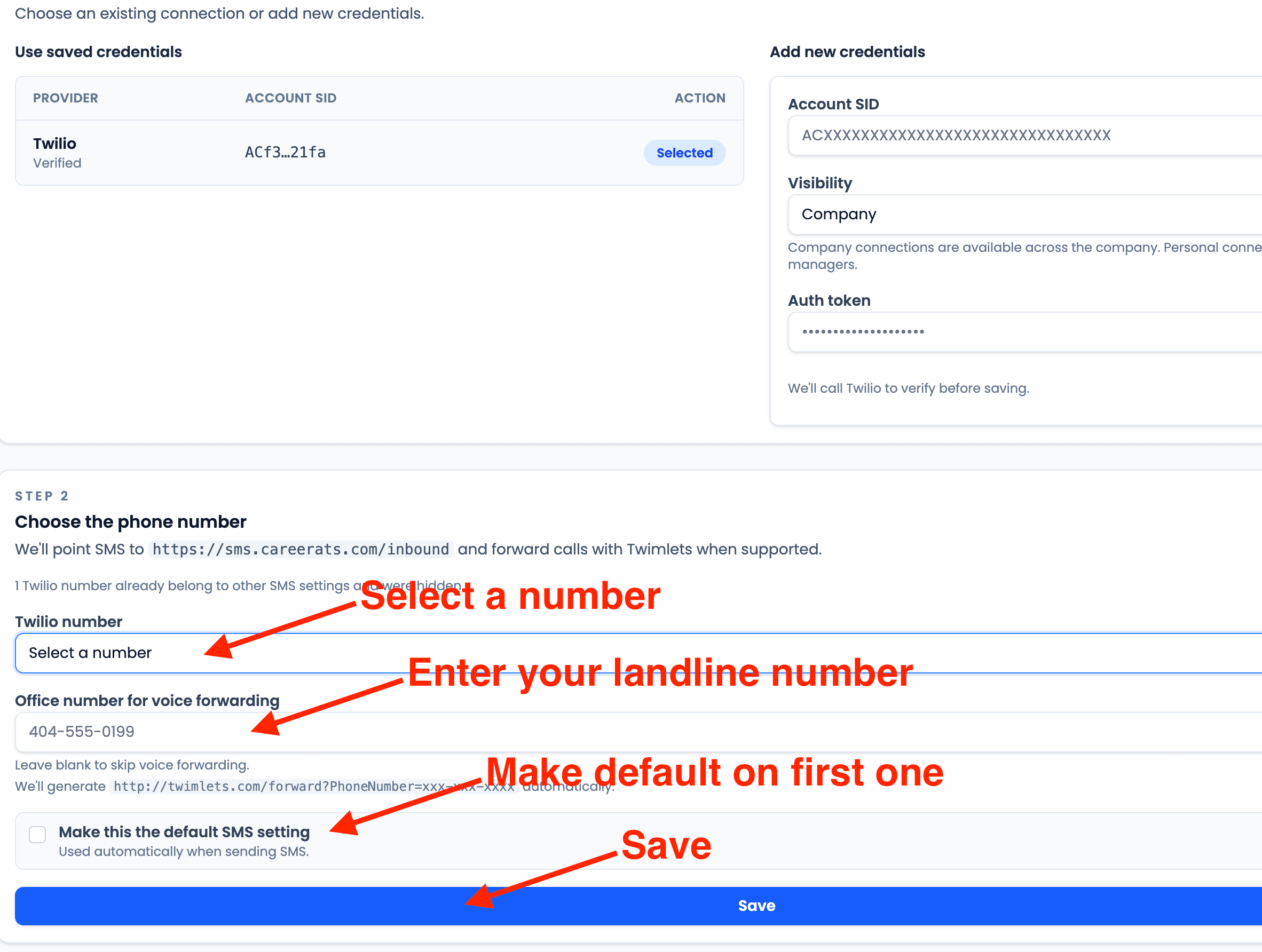
After the credentials validate, select the SignalWire number CareerATS should use. Enter the office number if calls should forward to a landline, choose whether this should be the default SMS setting, and click Save.
- The first SMS setting is automatically locked as the default.
- Leave the office number blank if you only need SMS and do not want voice forwarding.
Register the number for A2P messaging
Open the SignalWire A2P registration guide
If this SignalWire number will send messages to United States phone numbers, complete SignalWire A2P 10DLC registration before relying on it for applicant messaging.